
Vexifa SmartSleep
Wake-prevention utilities stop your screen from sleeping but show you nothing about your battery. The OS power settings require navigating menus every time. Neither tells you which process is draining your battery fast. SmartSleep gives you an instant wake toggle, live drain rate, and a high-drain alert that names the responsible app — one tray icon, always ready, completely free.
What Sleep Tools Leave Out
Wake Control
One-Click Wake Toggle
Most wake-prevention utilities bury their toggle inside a system tray flyout or settings dialog. SmartSleep shows you a large, clear status ring — active or inactive — so you always know the state at a glance and can change it instantly.
Session-Aware Wake State
OS power settings apply globally and persist across reboots — you have to remember to undo them. SmartSleep's wake state is explicit and session-scoped, so your default sleep settings are never silently left overridden.
Start With Windows
Older wake-prevention freeware tools require manual launch every session. SmartSleep includes a native Windows autostart toggle — always in your tray when you need it, never something you have to remember to open.
Battery Intelligence
Live Drain Rate
Windows shows you battery percentage. Nothing in the OS tells you how fast you are actually consuming power. SmartSleep shows a real-time drain rate in %/hr so you know exactly how long your charge will last under current load.
High-Drain Process Alerts
No sleep utility identifies the process killing your battery. SmartSleep detects abnormal power consumption and surfaces the specific application responsible — by name, with its CPU usage — so you can close it or investigate.
Charging State Awareness
SmartSleep tracks plugged-in, charging, and discharging states separately — displaying context-appropriate status so you always know at a glance whether your battery is recovering or being consumed.
Everything Simple Sleep Tools Skip
Wake-prevention utilities all solve the screen-sleep problem but ignore your battery entirely. SmartSleep ships everything included — wake control and battery intelligence in one lightweight tray app.
Live Drain Rate
IncludedWindows Battery icon shows percentage. SmartSleep shows %/hr drain rate in real time — so you know if your charge will last the meeting or not.
High-Drain Process Identification
IncludedNo other sleep utility tells you which app is draining your battery. SmartSleep names the process and shows its CPU usage when abnormal consumption is detected.
Instant Tray Toggle
IncludedOS power settings require navigating Settings → System → Power. SmartSleep sits in your tray — open it, click once, done.
Native Autostart
IncludedA single toggle in the app registers SmartSleep in Windows startup — no Task Scheduler, no startup folder, no registry editing required.
Rust-Native Performance
IncludedBuilt with Tauri and Rust — not Electron, not a background browser tab. SmartSleep runs under 0.5% CPU with minimal memory and no cloud dependency.
Privacy-First
IncludedYour battery data and machine state never leave your device. SmartSleep processes everything locally — no cloud sync, no account required. Crash reports and usage statistics are collected to improve the app.
See How We Stack Up
See how Vexifa SmartSleep compares against other Windows wake-prevention tools and the built-in OS power management.
View Competitor ComparisonRust-Native. Not Electron. Not a Browser Tab.
Larger wake-prevention suites pull in a full .NET runtime. Smaller freeware alternatives are tiny but battery-blind. SmartSleep is a true native Windows binary built with Rust via Tauri — it monitors your battery and wake state in the background at under 0.5% CPU. No cloud dependency. Crash reports and usage statistics are collected. No account required.
The Bottom Line: Everything a sleep utility should do — with the battery intelligence none of them bother to include.
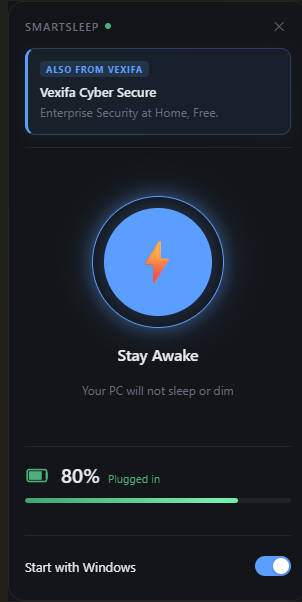
Wake lock active
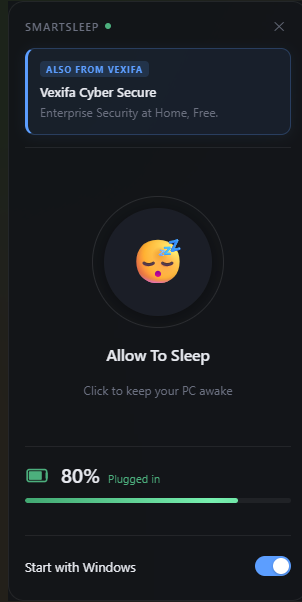
Sleep mode
Related reading
How to Keep Your Laptop Awake on Windows
Five methods ranked from a three-click Settings change to a one-click tray app — including when to use SmartSleep.
What's Draining My Laptop Battery on Windows?
Five methods compared — Settings, Task Manager, powercfg, sleep study, and real-time monitoring.